
How to Verify a Web Tool Never Uploads Your Files (DevTools Walkthrough)
2026-05-30
Short answer: open your browser's DevTools, switch to the Network tab, clear it, then run the tool on a file. If the file never leaves your browser, you'll see the tool's code download — but you won't see your file's bytes upload. Here's the 60-second version, plus how to read what you see.
Why "we don't store your files" isn't enough
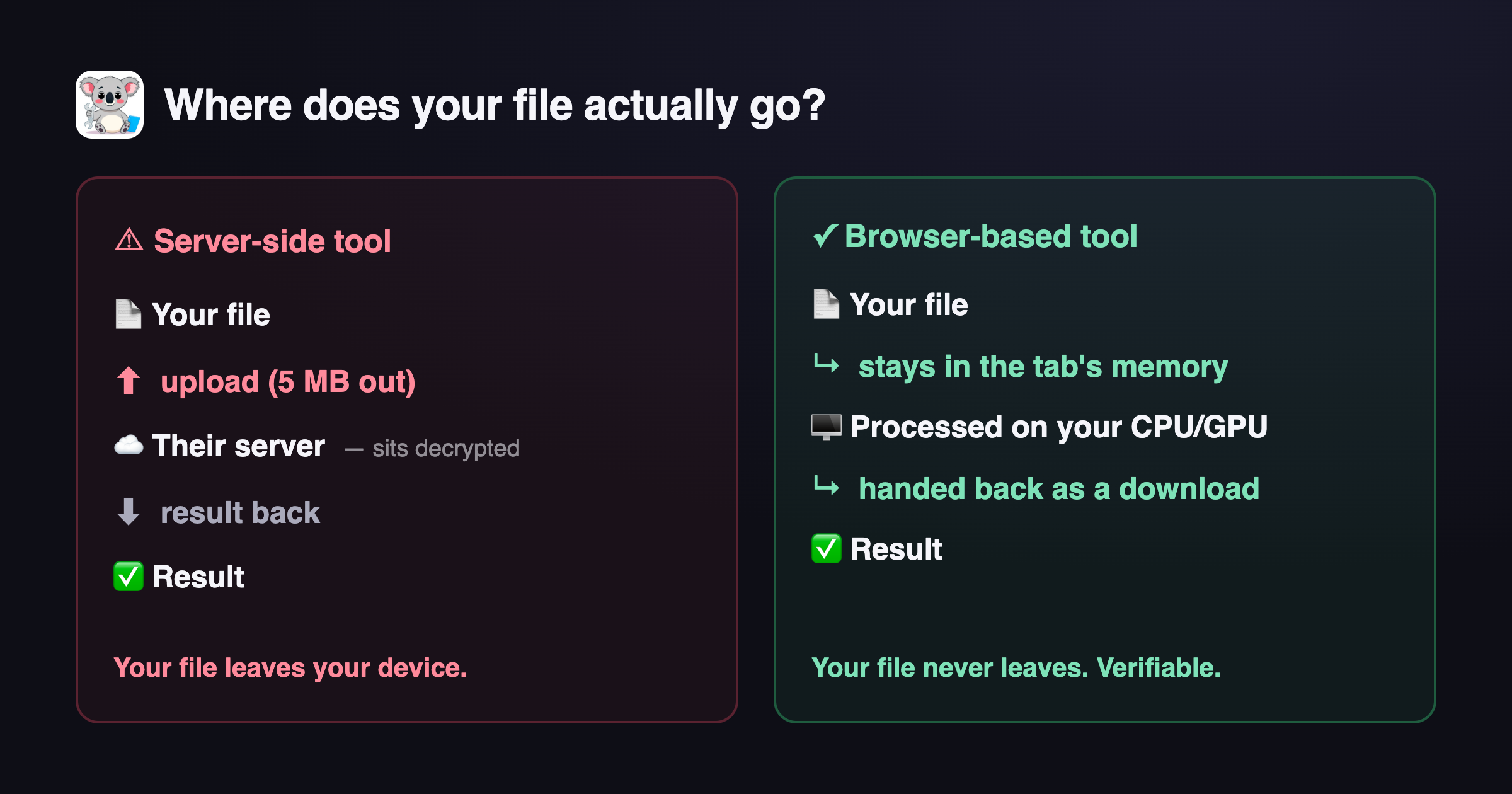
Most "free" online file tools upload your file to a server, process it there, and send the result back. Their privacy policy might promise they delete it afterward — but that's a promise you can't check. "We don't store your files" still means your file was transmitted and sat, decrypted, on someone else's machine. A guarantee you can't verify isn't privacy; it's marketing.
The good news: modern browsers can do the real work themselves — image processing, PDF rendering, video encoding through WebAssembly, even neural networks through WebGPU. When a tool runs locally, your file is read into the browser tab's memory, processed, and handed back as a download. It never touches the network. And unlike a promise, you can confirm that yourself in under a minute.
The 60-second check (Network tab)
- Open the tool in a fresh tab (for example, Image Compressor or Image to Text).
- Open DevTools — press F12, or right-click → Inspect. (Cmd+Opt+I on Mac, Ctrl+Shift+I on Windows and Linux.)
- Click the Network tab.
- Click the clear (🚫) icon to wipe existing requests, and tick Preserve log so nothing vanishes.
- Now drop your file into the tool and run it.
- Watch the request list, and sort by Size.
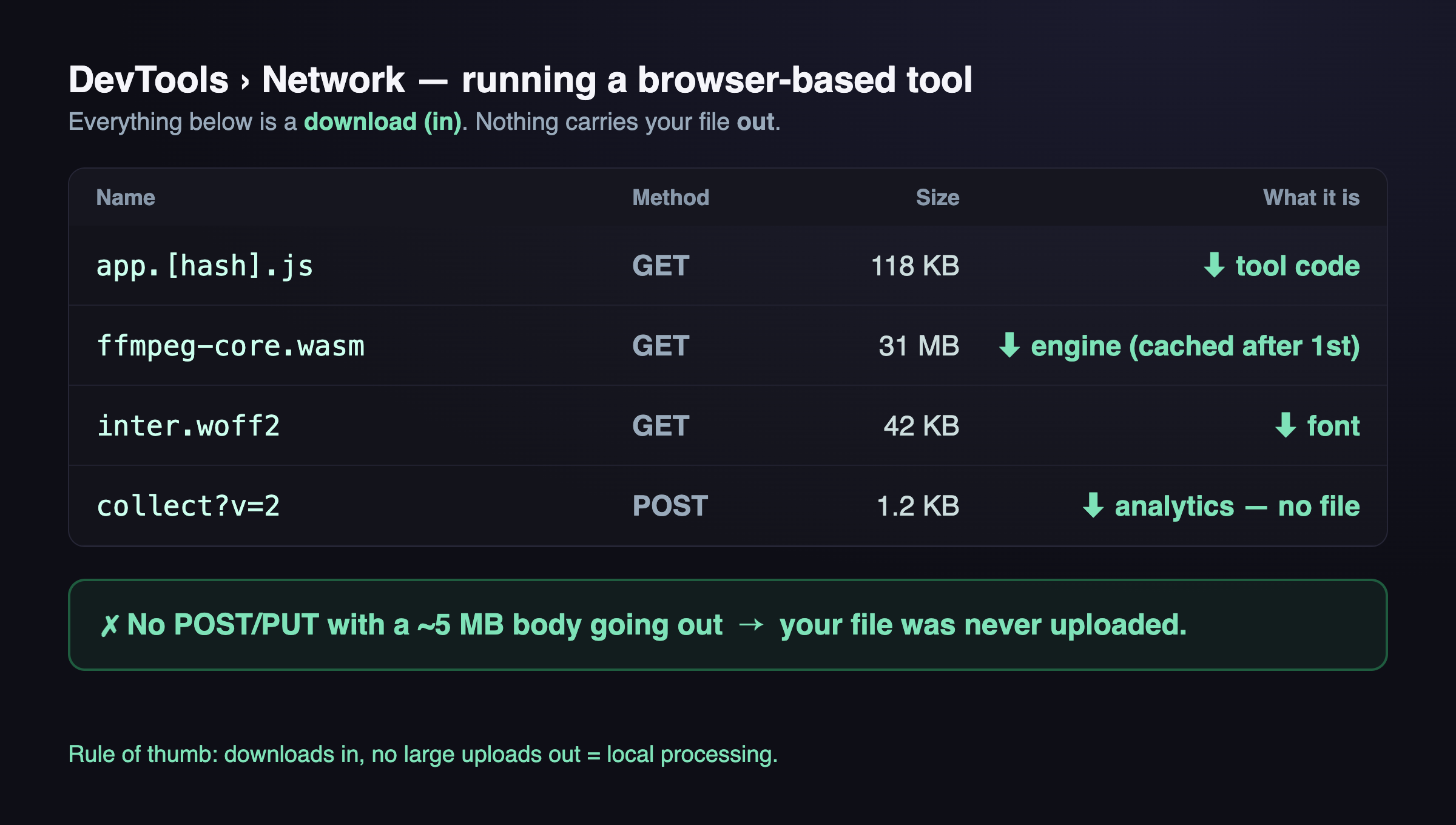
What you're looking for: a request that uploads your file is a POST (or PUT) with a request body roughly the size of your file. Upload a 5 MB photo and you'd see a ~5 MB payload going out. If the only large transfers are the tool's own code and .wasm files coming in — and they stop after the first run because they're cached — your file stayed put.
How to tell an upload from normal traffic
Not every request is a red flag. This is normal even for a 100%-local tool:
- Code and assets loading — JavaScript bundles,
.wasmbinaries (FFmpeg, Tesseract, and friends), fonts, the page itself. These are downloads: the response has size, the request body is empty, and they're cached after the first visit. - Analytics and ads — small pings to Google Analytics or AdSense. Tiny, and they never contain your file (they can't — your file isn't in any variable they can reach).
This is a red flag:
- A
POST/PUTwhose request payload is about the size of your file. Open the request's Payload / Request tab and you'll literally see the bytes, or a multipart form carrying your filename. - An upload to an unexpected storage domain (an S3 bucket, some CDN) the moment you hit "process".
Rule of thumb: downloads coming in, no large uploads going out = local processing.
The nuclear option: pull the plug
If you'd rather not read request logs at all, there's a cruder test anyone can run:
- Load the tool page once so its code downloads.
- Turn on airplane mode / switch off Wi-Fi — or in DevTools, set the Network throttling dropdown to Offline.
- Run the tool.
If it still works offline, it physically cannot be uploading your file: there's no connection to upload over. (A few tools fetch a large engine file on demand — some video tools pull FFmpeg the first time. Let that one download finish, then go offline and process.)
So why do so many tools upload?
Honestly, because server-side is easier to monetize. Uploading lets a company gate features behind a subscription, log usage, and — in the worst cases — keep your files to train models. Local processing takes more engineering: compiling C libraries to WebAssembly, fitting them inside a browser's memory budget, giving up that leverage. The trade is worth it for one reason — your files don't go anywhere, and you don't have to trust me on it. You can watch the Network tab.
That's the entire idea behind ToolKoala: every tool runs in your browser. Open DevTools on any of them and check for yourself.
FAQ
Does "no upload" mean the tool works offline? After the first load, usually yes. The code is cached, so most tools keep working with no connection. A few that pull a large engine on demand (some video tools) need that one download first.
Could a tool upload my file secretly over WebSockets or in the background? The Network tab shows WebSocket and background fetch/XHR traffic too, payload included. If your file's bytes leave, they appear there. That's the point: an upload has nowhere to hide from the Network tab.
Are analytics or ads a privacy problem? They see standard page-visit signals — rough location, device type — not your file. Your file never enters a variable an ad script can read, and if you block them the tools still work.
Is this specific to ToolKoala? No. This check works on any web tool. Run it on every "free online converter" before you trust one with a sensitive file.
— Milo 🐨