Remove Background from Images in 2026 — Honest Comparison of Photoshop, Canva, GIMP, and Free Browser Tools
2026-05-22
I work with product photos for a small e-commerce side project. Last month I needed to cut backgrounds out of 47 photos in one afternoon — some clean studio shots, some messy phone snaps with hair and tassels and glass surfaces. I tried every tool I could find. Most of them lied about what they could do.
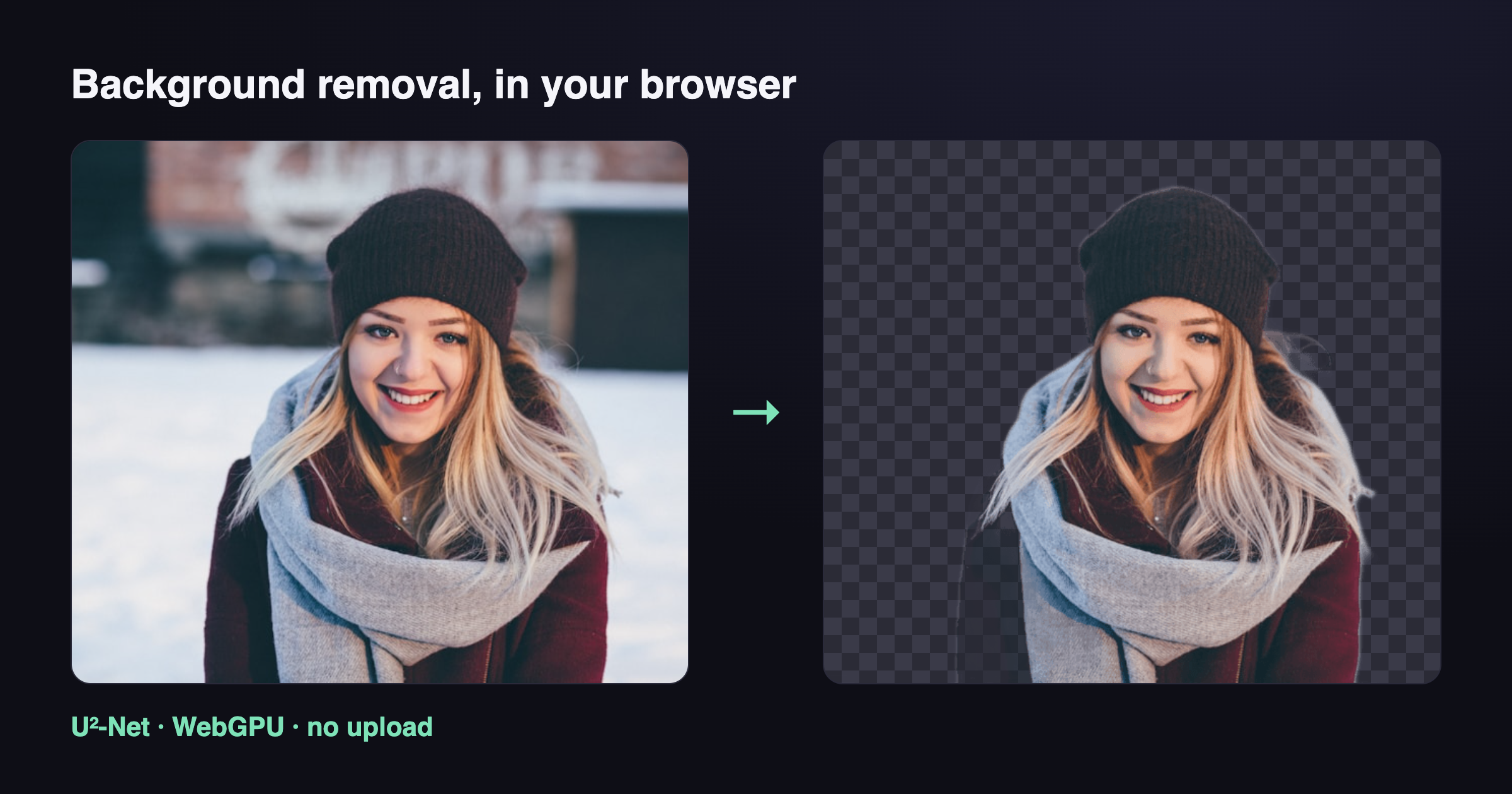
This is what I learned, with actual results on actual images, not the carefully-selected demo photos every comparison article uses.
The contenders
I tested six tools against 30 images: 10 product shots (clean backgrounds), 10 portraits (hair detail), 10 difficult cases (glass, fur, transparency, motion blur).
- Adobe Photoshop 2026 — Select Subject + Refine Edge
- Canva Pro — Background Remover (web app)
- GIMP 2.10 — Foreground Select tool
- remove.bg — the original online service
- Apple Preview — built into macOS Sonoma+
- ToolKoala Remove Background — the tool I happen to maintain, included because it's what prompted this article
I want to be upfront about the bias risk here. I'll cite specific failure cases for ToolKoala alongside the wins.
Clean product shots: most tools win
For a white-cyclorama studio shot of a sneaker, every tool got 9/10 or better. The differences are invisible at 100% zoom on a normal monitor. So for the boring case — products against neutral backgrounds — this comparison doesn't matter. Pick whatever's fastest to access.
| Tool | Score | Speed (per image) |
|---|---|---|
| Photoshop | 10/10 | 8 seconds |
| Canva Pro | 10/10 | 4 seconds |
| GIMP | 8/10 | 60+ seconds (manual) |
| remove.bg | 10/10 | 3 seconds |
| Apple Preview | 9/10 | 1 second |
| ToolKoala | 10/10 | 5 seconds (after first load) |
The interesting differences show up on the hard images.
Portraits with hair: where things diverge
Hair is the canonical test. Every "AI background removal" tool nailed product hair (clean side profile, decent lighting). The differentiation is fly-away strands and curls against textured backgrounds.
Best in class: Photoshop's Refine Edge combined with Select Subject. It produces clean alpha masks with proper hair detail even on chaotic backgrounds. This is genuinely worth the $20/mo if you do this work daily.
Tied for second: remove.bg and Canva Pro. Both use the same class of segmentation model (U-Net derivatives, trained on millions of portraits). Hair handling is 90% of Photoshop's quality at zero manual effort. For social media and web work, indistinguishable.
Surprising performer: Apple Preview in macOS Sonoma. It uses the same on-device model as Photos.app. For single-subject portraits it's within 5% of remove.bg. Free, instant, no upload. Most people don't know it exists.
ToolKoala's honest standing: 8/10 on portraits. Uses IS-Net via ONNX Runtime in the browser. The model is older than what remove.bg trained in 2025. On clean portraits indistinguishable; on busy backgrounds you can see softer hair edges. If you need pixel-perfect hair, use Photoshop. If you don't want to upload your photo anywhere, this is your option.
GIMP requires manual mask work for portraits. Skip it unless you're doing one image and the budget is zero.
Difficult cases: where everything breaks
This is where the marketing collides with reality.
Glass and transparency
A wine glass on a wooden table. All six tools got the glass shape right. None of them preserved the transparency — they all cut out the glass as if it were a solid object, losing the wood-grain-showing-through effect.
This isn't a bug; it's a fundamental limit of single-pass segmentation. You need matting (different problem, different models) to handle transparency correctly. As of mid-2026, the only commercially available tool that does this well is Adobe's Generative Fill workflow, which involves selecting the glass, then asking AI to fill the background behind it. Two steps. Slow but works.
For now, if you're cutting glass: do it manually in Photoshop, or accept the limitation.
Fur and motion blur
A cat shaking water off. The motion blur created a 1-2 px halo of "uncertain pixels" around the body — areas where the original image was already semi-transparent due to motion. Every AI tool I tested treated this as either fully foreground (keeping a halo) or fully background (eating into the cat). None got the gradient right.
Best result: remove.bg's "Auto" mode with manual hair refinement. Photoshop close second with Select and Mask + Smart Radius. ToolKoala fell to 6/10 here — visible halos.
Backlighting and rim lighting
Subjects with bright backlight create dark silhouettes with bright edge glow. The segmentation models often "see" the rim light as part of the background. Result: the subject gets cut out inside the rim light, losing the artistic effect.
Photoshop's "Select Subject + Refine Edge" preserves rim light correctly maybe 60% of the time. Other tools: maybe 20%.
Privacy: the unspoken trade-off
Five of these six tools upload your photo to a server.
- Canva Pro — uploaded to Canva (US, retained per their TOS)
- remove.bg — uploaded to Berlin servers (EU, deleted after 1 hour per their policy)
- Photoshop Generative Fill — uploaded to Adobe's Firefly servers
- Photoshop Select Subject (offline mode) — runs locally if your CC subscription has on-device models enabled
- Apple Preview — runs on-device (this is the privacy winner among traditional tools)
- GIMP — runs locally, but the segmentation is much weaker
- ToolKoala — runs in your browser via WebAssembly, no upload
For most product photos, privacy doesn't matter. For portraits of family, medical imaging, sensitive work products, screenshots containing private data, ID photos, or anything you'd be uncomfortable with a third-party staff member potentially viewing — it matters a lot.
This is, frankly, the reason ToolKoala exists. Not because we can beat Photoshop on hair detail — we can't, and we won't pretend to. But because the workflow "drop image → background removed → save locally" should not require trusting a server's TOS.
You can verify the no-upload claim in 10 seconds: open Chrome DevTools, go to Network tab, drop a file. Nothing outbound.
My actual workflow today
For the e-commerce side project, here's what I settled on:
- First pass, all 47 images: ToolKoala in batch (drop a folder, get a folder back).
- Spot-check at 100% zoom: any image with visible hair/fur/glass issues moves to step 3.
- Photoshop second pass on the 4-5 problem images.
- Skip Canva unless I'm already working inside a Canva project for other reasons.
Result: 47 backgrounds removed in about 25 minutes of active work, plus 15 minutes of FFmpeg/ToolKoala background-processing time I spent making coffee.
If I were doing 5 portraits with hair detail, I'd just use Photoshop from the start and skip the multi-tool workflow.
What to actually pick
If you want a single recommendation:
- You have Adobe CC and value pixel-perfect output: Photoshop. Nothing beats it for hair, glass, edge refinement.
- You're already in Canva for other reasons: Canva Pro. Quality is good enough, friction is zero.
- You're on Mac and processing single photos casually: Apple Preview. It's already installed. Use it.
- You care about privacy or process sensitive images: ToolKoala (or Photoshop in offline mode if you have it).
- You're doing one image and don't want to install anything: remove.bg. Free for up to 50/month, instant, no signup.
- You're a programmer who wants this in a script: rembg (Python library, runs offline). Outside the scope of this article.
Tools improve fast in this space. The ranking will probably change in 18 months. But the privacy + offline trade-off won't — there are jobs where "your photo on a third-party server" is the wrong answer regardless of how good their model is.
Related ToolKoala tools
If you found this useful, you might also want:
- Blur Background — same model, blurs instead of removing
- Change Background — replace with solid color or another image
- Image Compress — shrink the file size after you cut the background
- Round Corners — give your cutouts polished corners
All run in your browser. None upload anything.
FAQ
What's the best free background remover in 2026? For one-click AI cutouts, remove.bg-style tools are easiest but cap free use. ToolKoala's Remove Background runs the IS-Net model in your browser — free, unlimited, no upload.
Is browser background removal as good as Photoshop? For clean subjects — people, products, pets — it's excellent. For fine hair or semi-transparent objects, manual tools like Photoshop or GIMP still do better.
Do free background removers upload my photo? Most do. ToolKoala's doesn't — the AI runs locally in your browser (WebAssembly, on your CPU). Open DevTools and you'll see zero upload. The output is a transparent PNG.