How to Save a PDF as JPG — 4 Methods Tested (Without Adobe Acrobat)
2026-05-22
Every few weeks I get an email like this: "Can you send me the receipt as a JPG? The form won't accept PDFs." Or somebody needs a single page from a PDF as a social media image. Or a meme from a 40-page report.
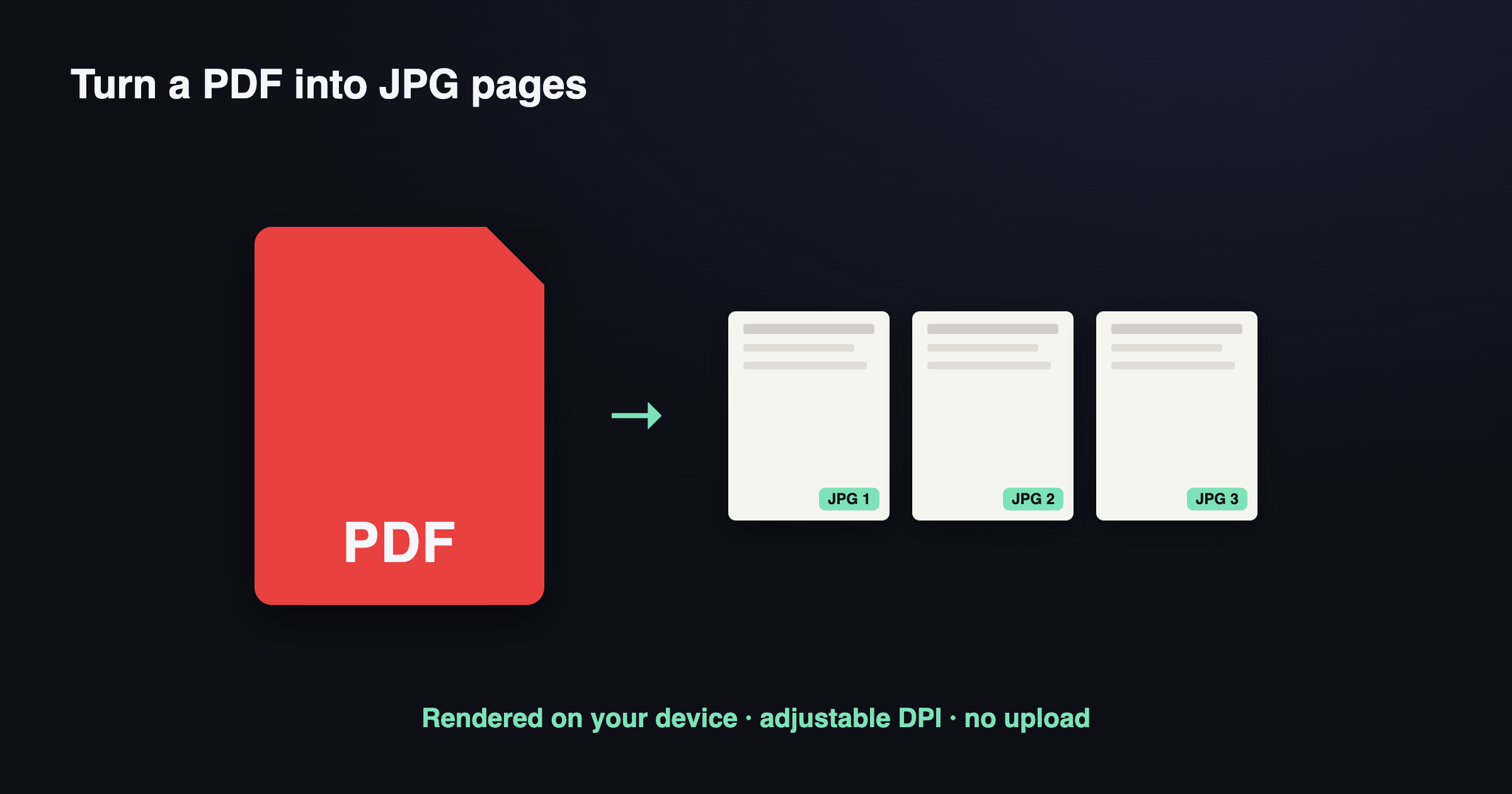
If you have Adobe Acrobat, you click Export → Image → JPEG and you're done. If you don't (it's $19.99/month), you have to figure out alternatives. This post tests four free methods on the same PDF — a 6-page mixed-content document with text, photos, charts, and a scanned signature — and shows the actual quality and file size results.
Method 1: macOS Preview (built-in, Mac only)
If you're on a Mac, you already have it.
- Open the PDF in Preview.
- View → Thumbnails (or
Cmd+Option+2) to see all pages. - Select the page(s) you want.
- File → Export → Format: JPEG → adjust Quality slider → Save.
Quality: Excellent. Preview renders at the PDF's native resolution by default, which is typically 150–300 DPI. The quality slider goes from 0 (lossy mess) to 1.0 (visually lossless). At 0.9 you get great quality at sensible file sizes.
File sizes on my test PDF (page 3, a chart on white background):
- Quality 1.0: 1.2 MB
- Quality 0.9: 380 KB
- Quality 0.5: 95 KB
- Quality 0.0: 22 KB (visibly degraded)
Downsides:
- Mac only. Windows people: skip to Method 4.
- Doesn't expose DPI directly. You get whatever the PDF was authored at.
- Selecting multiple pages exports them as separate JPGs, which is what you want, but it can be confusing if you expected one combined file.
When to use: Always, if you're on a Mac and the PDF isn't enormous (under 100 pages).
Method 2: Microsoft Word (cross-platform, the trick most people don't know)
Yes, Microsoft Word can do this. It's clunky but works on Windows, Mac, and the web version.
- Open Word. File → New blank document.
- Insert → Object → From File → pick your PDF.
- Word inserts each page as an editable image inside the doc.
- Right-click any inserted page → Save as Picture → Format: JPEG → Save.
Quality: Adequate but not great. Word renders PDFs at a fixed 150 DPI internally and then re-encodes. The result is noticeably softer than Preview's output, especially for text-heavy pages.
File sizes on my test PDF: typically 200–400 KB per page, but with visible JPEG artifacts on text.
Downsides:
- Slow. Each page takes 1–2 seconds to render in Word.
- Quality is locked. There's no slider.
- You have to right-click each page individually.
When to use: Honestly, almost never, unless you're stuck on a Windows machine with no internet, can't install anything, and Office is already there. Method 4 is faster.
Method 3: Online conversion services (the obvious option)
Search "pdf to jpg" and you'll find 50 sites. Most of them are reskins of the same two backend services. The popular ones include I Love PDF, Smallpdf, PDF24, FreeConvert, and dozens more.
The good: They work. Upload PDF, click convert, download JPG. Most are free for small files.
The trade-offs:
- Your PDF goes to their server. Read the privacy policy if it matters. Most claim to delete files after some retention window — anywhere from 1 hour to 30 days. Some don't claim at all.
- Free tiers have limits. Common: 100 MB max upload, watermarks added, 2 conversions per hour, max 20 pages, must wait 60 seconds between operations.
- The "upgrade to remove watermark" funnel. This is the actual business model for many of these sites.
- Quality varies wildly. Some output 72 DPI mush. Others use proper renderers. You usually can't tell until you've already uploaded and waited.
When to use: One-off conversions of non-sensitive PDFs, when you don't want to install anything or learn a tool.
When NOT to use: Tax documents, medical records, ID scans, draft work product, anything with personal data, anything you wouldn't want a random stranger to see.
Method 4: ToolKoala (browser-based, our tool)
I'll be upfront: I maintain ToolKoala's PDF to JPG converter. The reason it exists is exactly the privacy gap in Method 3. Everything runs in your browser via pdfjs-dist (the same library Firefox uses to display PDFs natively).
- Open toolkoala.com/pdf-to-jpg.
- Drop your PDF.
- Pick the scale: 1x (72 DPI, web/email), 2x (144 DPI), 3x (216 DPI) or 4x (288 DPI, print). You can change it afterwards — the pages are simply redrawn.
- Each page becomes a JPG as soon as the PDF is in.
- Click a page to download it, or Download All for one ZIP.
Quality: Configurable. 2x DPI matches Preview at default settings. 3x DPI exceeds it.
File sizes on my test PDF (page 3, chart):
- 1x DPI: 95 KB
- 2x DPI: 280 KB
- 3x DPI: 620 KB
Verify no-upload: Open Chrome DevTools → Network tab → drop your PDF. You'll see the pdfjs library load if it isn't cached, but no outbound POST of your file. The bytes never leave your browser.
Downsides I should be honest about:
- First load downloads the PDF.js library (~3 MB). After that, cached. Subsequent uses are instant.
- For very large PDFs (200+ pages), browser memory becomes the limit — there is no upload, so there is no upload cap either.
- No batch processing of multiple PDFs at once. One at a time.
When to use: Anything sensitive. Anything where you'd rather not trust a TOS. Anything you'd describe as "draft" or "private."
Quick decision guide
| Your situation | Best method |
|---|---|
| Mac user, occasional conversions | Preview |
| Windows user, sensitive PDF | ToolKoala |
| Windows user, public PDF, no install allowed | Online service (any) |
| Need exact pixel control (DPI 600+) | Preview (ToolKoala tops out at 4x = 288 DPI) |
| Already have Adobe CC | Acrobat (it's slightly better than all of these) |
| Converting 100+ PDFs in a script | pdftoppm command-line tool (outside scope) |
What about quality at the same file size?
The actually interesting comparison is: at 250 KB per page, which method produces the cleanest text and photo reproduction?
I A/B tested page 3 of my mixed-content PDF (text + chart) at ~250 KB output across all methods:
- Preview at 0.85 quality: text crisp, chart clean, no artifacts. Winner.
- ToolKoala at 2x DPI: equivalent to Preview within noise. Tied.
- remove.bg-style online services: text mildly softened, chart fine.
- Word: visible JPEG noise on text edges. Bottom.
So if you're on a Mac, Preview is genuinely best — Apple ships an excellent JPEG encoder. If you're not on a Mac, ToolKoala matches it within margin of error.
Common mistakes
A few things I see people get wrong:
Saving at 100% quality always. JPEG at 100% is not lossless. It's just less lossy. If you need true lossless, save as PNG instead — but PNGs are usually 3-10x larger.
Choosing DPI without knowing the use case. 72 DPI is fine for email or web display. 150 DPI is the standard for printing photos. 300 DPI is professional print. Anything over 300 is wasted unless you're billboarding it.
Converting a 300-page PDF to JPGs when you only need 1 page. Use Preview or PDF Extract to grab the specific page first, then convert. Saves time and storage.
Re-saving JPG → JPG → JPG. Every JPEG save is lossy. If you'll edit later, save the first export as PNG, edit in PNG, and JPEG only the final output.
Related ToolKoala tools
If you're already doing PDF work, you probably want a few of these:
- PDF to Image — same engine, defaults to PNG (lossless)
- PDF Extract Pages — pull specific pages first, then convert
- PDF Compress — shrink the original PDF first if it's huge
- Image Compress — squeeze the JPG output further
All browser-side. None upload anything.
FAQ
How do I convert a PDF to JPG without Adobe Acrobat? Use a browser tool like ToolKoala's PDF to Image — it renders each page to JPG or PNG locally, no Acrobat and no upload.
Will converting a PDF to JPG lose quality? You choose the DPI: higher DPI means sharper, larger images. 150 DPI is fine for screens, 300 DPI for print.
Is it safe to convert a sensitive PDF online? Only if the tool processes locally. ToolKoala's runs in your browser, so the PDF never leaves your device — verifiable in DevTools.